RestroSuite automatically emails your guest at the key moments of an order — when it's received, when you accept it, and if it's cancelled — each rendered with your restaurant's branding. No emails are sent for the stages in between. You can add your own note to any of these emails and preview it live before it goes out.
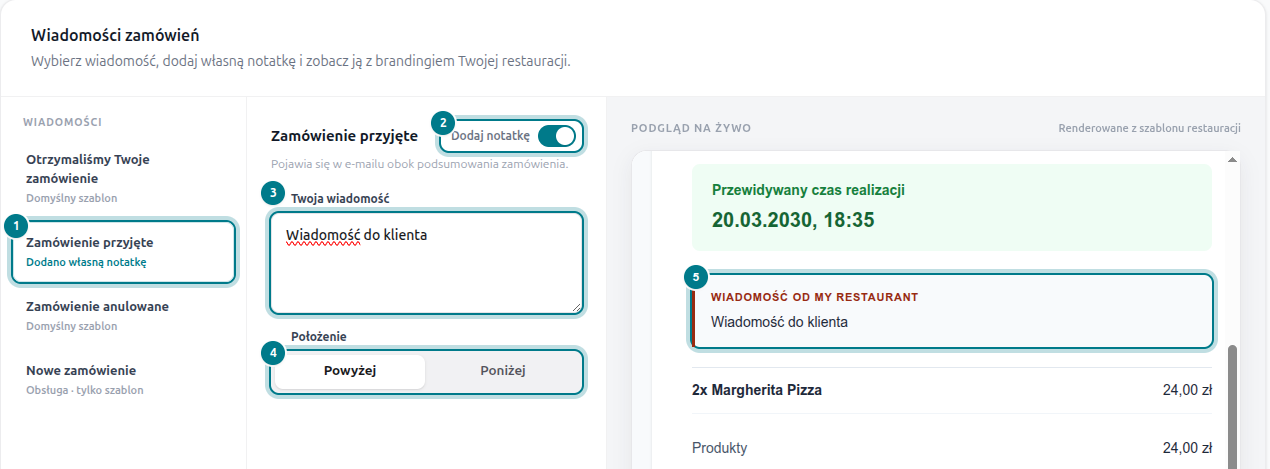
- Pick a message. Choose an email from the list on the left — the badge shows whether it uses the default template or already has your own note.
- Turn on “Add note”. Flip the switch to attach a personal message to that email.
- Write your message. Type what your guest should read — a parking tip, a thank-you, opening hours, anything.
- Choose the placement. Show your note above or below the order summary.
- Check the live preview. The panel on the right updates as you type, exactly as the guest will see it.
Notes are available on the three guest emails:
- Order received — sent the moment the guest places the order. Skipped if auto-accept is enabled — the guest gets the “order accepted” email straight away instead.
- Order accepted — sent when you accept the order, with the estimated time.
- Order cancelled — sent if you cancel the order.
The New order email is an internal alert for your staff, so it always uses the default template.
Personalise notes with tokens that fill in automatically:
{first_name}, {order_number} and {restaurant_name}. On the “order accepted” email you can also use {estimated_time}. Each note can be up to 1000 characters.